In this walk-through, I would explain on deploying the TibcoBW to TibcoAdmin.
Here is our tibcobw processes, which receives booking request and does the service booking and then pushes the message to queue, which is eventually picked up and processed by another process.
To create EAR file, click on Tools and Select create Project EAR.
As you see EnterpriseArchive is created, which contains shared archive and process archive. In case, any additional resources are required for deployment those can be added in either resources, files or jars tab.
Process Archive holds the TibcoBW process. This also allows to add both starter and non-starter processes.
Once the relevant files are added. Go to Enterprise Archive and then click on Build Archive. This would generate EAR file.
Lets login to Tibco Admin. To go start>>Tibco>>Tibco Administrator xx >> Tibco Administrator. Provide the username and password; by default its admin and admin.
Using the Left pane, we can manage user, resource and Application and detailed view is seen in the Right pane.
To deploy the application, go to Application Management then click on New Application. Then browse and choose the EAR project file and click ok.
Application Details are shown from the EAR file. Save the page.
Click on Application Name and then navigate to advance tab to change global variables.
Update the gvs as per environments and save the changes.
Click on deploy to deploy the application.
New TibcoDeployment is deployed and running, which is showns under the Application Management.
Select Service Instances from the left pane and then navigate through each tab in the right pane. BW Processes shown the number of times each process ran and time taken by it.
Tracing help us to see the logs that are logged in TibcoBW process.
Go to Configuration of the application and click process archive.ear then navigate to advance tab to set the min and max jobs.
Welcome to the tutorial series on Tibco. Today, I would brief on how to build a Tibco process using JDBC palettes and group activity iterate through record sets and transaction processing.
Here we will define a JDBC connection to connect to MS SQL.
Lets build a process to fetch records from database using JDBC query as shown. Run the process to see the result set.
Test and verify the dataset.
Now, we would build another process to update specific record using parameterizing query as shown.
Lets refactor the process to update each records using group along with JDBC Query activity.
..
...
Lets induce a failure for customer two while updating the credit score as shown. Run the process and see customer one data is updated though process failed while updating the customer 2.
In order avoid inconsistency, lets completely have the update process in a transactional group as shown.
Test and verify the behavior, see that on failure previous updated data are rolled backed.
The video demonstration is available on the Youtube, here is the embedded video.
In previous article, I brief about JMS palettes using text message type. Here in this article, I would explain how to process XML message to EMS queues and topics. Lets build a EMS Order Publisher and Subscriber Processes, publisher reads the a file directory and parse the xml and send to JMS Queue Sender. Subscriber reads the message and transforms to target format and writes to file system. Below is the publisher process and configurations of all the activity is shown below. Order Request is published to queue.
Below is the subscriber process, which reads the message from Queue and transforms to output format and writes to file system as shown below. Configurations are shown below.
JMS Queue Receiver picks up the order request and transforms it to output format type as shown below.
Now, lets build a EMS Order Publisher and Subscriber Processes, publisher reads the a file directory and parse the xml and send to JMS Queue Sender.Subscriber reads the message and invokes a web services (Cab or Hotel services based on the messages received.) Add JMS properties explicitly to the message we sent to topics and queues.
Here is process, which receives booking request from file directory and publishes to topic before publishing it updates the JMS properties as shown below.
Here are the subscribers, which subscribes based on the Servicetype JMS properties for Hotel.
Subscribers process for Cab related messages.
Run and test the project.
The video demonstration is available on the Youtube, here is the embedded video.
Here, I would brief on JMS palettes used for connecting to Queues and Topics. Queues are for point-to-point communication model and Topics are for Publish and Subscribe model. Lets first create a JMS connections using JMS Connection as shown below.
In JMS connection, configure the appropriate username and password details and then test connection to verify the connectivity.
Create a new process and drag and drop a JMS Queue Sender activity from JMS Palette. Lets send a simple text information to queue by passing a text data in JMS body as shown.
Configure the JMS connections and destination queue name in the configuration tab of JMS Queue Sender. Choose message type as text, as we are sending text messages to the queue.
Lets build another process that receives the message from the queue and logs the message. Bring a JMS Queue Receiver activity from JMS palette. This a starter activity.
In JMS Queue Receiver, configure the connection and destination queue. Mapping of JMS Queue receiver to WriteToLog is shown below. From tester tab, run the process and Create a job for sender and immediate you notice, JMS queue receiver processes the message from queue. Lets now, develop a publisher and subscriber process with JMS Topic Publisher and Subscriber. Create new publisher process, as shown below.
Here is the subscriber process, which receives the message and logs it using WriteToLog. Similarly, there is another subscriber process having same functionality.
Run and test the process. For every instance of publisher,two subscribers A and B are initiated as shown below.
Now, we will build process using JMS Requestor activity, activity can be used to both Topics and Queues activities. Below screen shots show a processing invoking JMS Queue Requestor activity and there is implementation for using JMS Queue Receiver and Reply to JMS Message.
Run and verify the process as shown below.
Similar to queue requestor, below screen shot shows the topic requestor implementation.
The video demonstration is available on the Youtube, here is the embedded video.
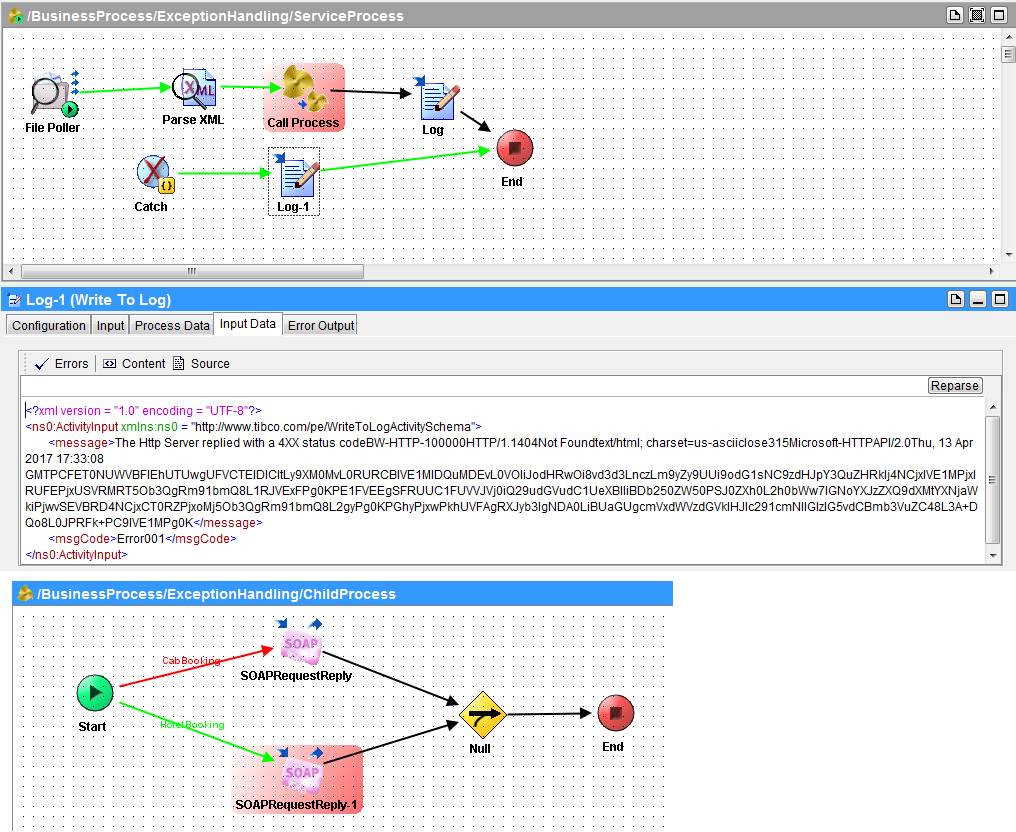
In this article, I will explain on how to handle exceptions in TibcoBW. In previous article, we developed TibcoBW process to invoke booking service based of service type in the request. This process isn't having any exception handling mechanism.
Let run the process and place a invalid booking request and as parsexml isn't able to parse the file exception occurred.
Here, we will enhance the process to handle run-time exceptions using catch activity and then customize exception using custom exception schema. Lets bring in catch activity and configure enable Catch All exception. In case, if we want to catch specific exception choose the exception available from the dropdown. This allows multiple catch activities in single BW process.
Bring in WriteToLog activity and connect the catch to log and then to end activity as shown below, mapping from catch to log activity is shown below.
Re-run the process with invalid xml request and as you see, exception is caught and handled gracefully.
In case, of service is down, the same catch block handles the failure, the failures bubbles up to the parent process.
Now, lets develop a custom exception schema as shown below.
In the end activity of child process, configure the error schema to custom developed schema as shown below.
Bring in a catch and generate error activities; configure generate error activity with the custom schema and map the exception details to custom schema as shown.
In the main process, bring in another WriteToLog and map exception details using custom exception schema
Run and test the process, exceptions details are captured using the custom exception schema.
The video demonstration is available on the Youtube, here is the embedded video.